Zen Rocket League Settings: Complete Guide to the Pro Player’s Winning Configuration (2026)
 Fyrconthius Lazenquill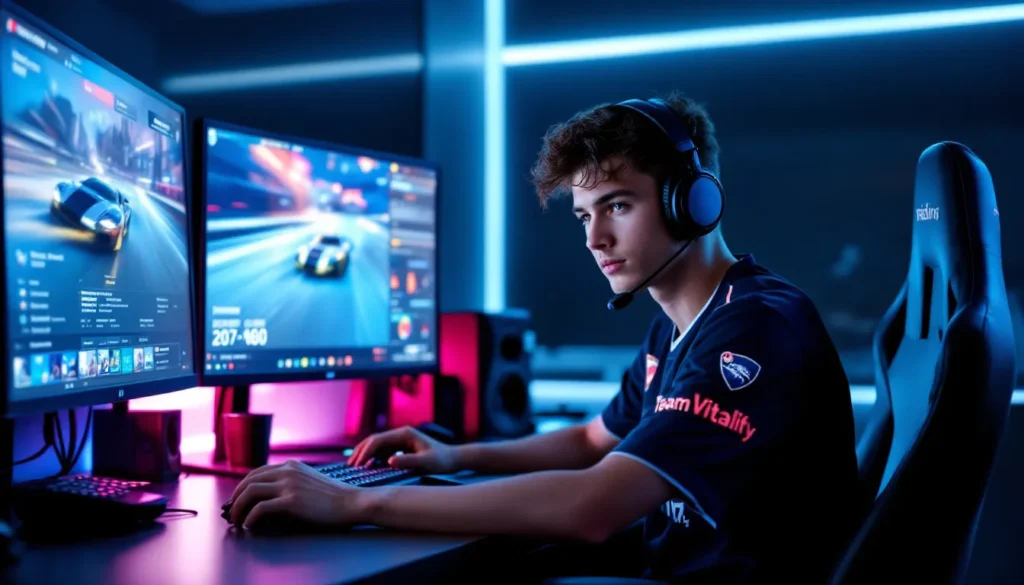
Zen has rapidly become one of the most electrifying names in competitive Rocket League, and his tournament performances have left players across every rank wondering what settings he’s using to pull off those mechanical masterpieces. Whether you’re grinding ranked 2v2s or trying to break into Champion for the first time, copying pro settings is a tempting shortcut, but only if you understand what you’re actually changing and why it works for them.
This guide breaks down every setting Zen uses, from camera configuration to controller deadzones, so you can test them in your own game. You’ll also learn when to copy his setup exactly and when to adjust based on your playstyle, rank, and hardware. Let’s immerse.
Key Takeaways
- Zen Rocket League settings prioritize speed and mechanical precision with a 110 FOV, 270 distance, and low 0.10 deadzone for consistent aerial control.
- Change settings gradually—one category at a time over 15-20 matches—to allow your brain to recalibrate spatial awareness and avoid performance dips.
- Disabling post-processing effects and running 240+ FPS with V-Sync off reduces input lag, making the difference between pro-level responsiveness and ranked inconsistency.
- Your hardware and playstyle matter more than exact settings: low-spec PCs, defensive playstyles, and console platforms require customization beyond Zen’s configuration.
- Settings provide a foundation for mechanics, not a shortcut to rank gains—proper training in freeplay and workshop maps is essential regardless of configuration.
Who Is Zen and Why His Settings Matter
Zen is a French professional Rocket League player currently competing for Team Vitality in the Rocket League Championship Series (RLCS). He made his mark by transitioning from a ranked grinder to one of the youngest players to compete at the highest level, and his mechanical consistency has earned him respect from veterans and analysts alike.
What sets Zen apart isn’t just raw talent, it’s his ability to maintain ball control and execute flip resets under pressure. His settings reflect a playstyle built around speed, precision, and close-range dribbles. Players who favor mechanical outplays over rotational positioning tend to find his setup more intuitive than defensive-minded configurations.
Many pros use similar camera and control settings, but Zen’s specific combination has gained traction because of how well it translates across different skill levels. Unlike some niche configurations that only work at SSL, his setup is accessible for Diamond and Champ players who want to improve their aerial control without feeling disoriented.
Zen’s Camera Settings Breakdown
Field of View (FOV)
Zen plays on 110 FOV, which is the maximum allowed and the most popular choice among RLCS players. A higher FOV gives you more peripheral vision, letting you track teammates, opponents, and boost pads without constantly checking ball cam. The tradeoff is that the ball appears slightly smaller on screen, which can mess with depth perception when you’re learning aerials.
If you’re coming from a lower FOV like 100 or 105, don’t crank it to 110 overnight. Bump it by 2-3 points every few sessions to let your brain adjust.
Distance and Height
Zen uses 270 distance and 100 height. This is a fairly standard competitive setup that keeps the car close enough to read touches but far enough to see incoming challenges. The 100 height is slightly elevated compared to some pros who sit at 90-95, giving him a better top-down view during 50/50s and wall plays.
Players who prefer dribbling and ground plays sometimes drop distance to 250-260. If you find yourself losing the ball overhead during aerials, try lowering distance by 10 before adjusting height.
Angle and Stiffness
His angle is set to -3.0, which tilts the camera slightly downward to keep the car more centered in frame. Negative angles make flicks and ceiling shots feel more natural because you’re not fighting the camera to see your hood. Most pros stick between -3.0 and -5.0.
Stiffness is at 0.45, which controls how tightly the camera follows your car during sharp turns. Lower stiffness (like 0.30) creates a smoother, cinematic camera that lags slightly behind, while higher values (0.60+) lock the camera closer. Zen’s 0.45 is middle-ground, responsive enough for half-flips and recoveries without inducing motion sickness.
Swivel Speed and Transition Speed
Zen’s swivel speed is 5.00, which determines how fast the camera rotates when you hold the right stick. This is average for pros: slower speeds (3.00-4.00) give you finer control when looking around, but can feel sluggish in fast redirects. If you’re using competitive gaming setups for the first time, start at 4.50 and adjust based on how often you manually swivel.
Transition speed sits at 1.20. This controls how quickly the camera switches between ball cam and car cam. Zen’s slightly slower transition helps avoid disorientation during dribbles when you’re toggling ball cam on and off rapidly.
Zen’s Control Settings and Keybinds
Controller vs. Keyboard and Mouse
Zen plays on controller, specifically, a standard PS5 DualSense or Xbox-style controller. Rocket League heavily favors analog input for fine adjustments in aerial control and steering, which is why nearly every RLCS pro uses a controller. KBM players exist at high ranks, but they’re rare and require custom binds that sacrifice some movement fluidity.
If you’re on KBM and considering switching, expect a rough adjustment period of 20-40 hours before basic aerials feel comfortable again.
Button Configuration
Zen’s bindings prioritize accessibility for advanced mechanics like air roll left/right and fast aerials:
- Boost: R1/RB (right bumper)
- Jump: X/A (face button)
- Air Roll Left: L1/LB (left bumper)
- Air Roll Right: Not bound (Zen primarily uses directional air roll left)
- Powerslide: L1/LB (shares bind with air roll)
- Ball Cam Toggle: Triangle/Y
Binding air roll and powerslide to the same button is standard because you rarely need both simultaneously. Having boost on a bumper lets you hold it while jumping and steering without claw-gripping the controller.
Deadzone and Sensitivity Settings
Controller deadzone is set to 0.10 for both steering and aerial. This is a low deadzone, meaning the game registers stick input almost immediately. Low deadzones improve responsiveness but can cause stick drift on worn controllers. If your car turns slightly when you’re not touching the stick, bump deadzone to 0.15-0.20.
Dodge deadzone is at 0.50, which is middle-of-the-road. Lower values make it easier to accidentally dodge when attempting a fast aerial: higher values require more deliberate stick flicks.
Aerial sensitivity and steering sensitivity are both at 1.40. This amplifies stick input, making small adjustments more pronounced. Higher sensitivity helps with tornado spins and air roll shots, but can make recoveries twitchy if you’re not used to it. Many esports players recommend staying between 1.30 and 1.50 for consistency.
Video Settings for Optimal Performance
Graphics Quality and Performance Balance
Zen plays on PC with settings optimized for maximum FPS rather than visual fidelity. His exact specs aren’t publicly listed, but based on his stream setup, he’s likely running Rocket League at 240+ FPS on a high-refresh monitor.
His in-game settings:
- Texture Quality: High Quality (minimal FPS impact)
- World Detail: Performance
- Particle Detail: Performance
- Effect Intensity: Low
- Post Processing: Disabled
- Anti-Aliasing: Disabled
- Ambient Occlusion: Disabled
- Depth of Field: Disabled
- Bloom: Disabled
- Light Shafts: Disabled
- Lens Flares: Disabled
- Dynamic Shadows: Disabled
Disabling post-processing effects reduces visual clutter and eliminates subtle input delay caused by rendering overhead. If you’re on a mid-tier GPU and struggling to maintain 144 FPS, drop render quality to Performance or High Performance.
Display and V-Sync Options
V-Sync is disabled. V-Sync caps your framerate to your monitor’s refresh rate to eliminate screen tearing, but introduces noticeable input lag, unacceptable for competitive play. Instead, use your GPU’s control panel to enable G-Sync or FreeSync if your monitor supports it.
Framerate is set to uncapped (or capped at 250-360 depending on hardware). Running the game well above your monitor’s refresh rate reduces frame time variance, which makes inputs feel more consistent even if you can’t see every frame.
For console players on PS5 or Xbox Series X, Rocket League runs at 120 FPS in performance mode. Enable this in your system settings and make sure you’re using an HDMI 2.1 cable with a compatible display.
Audio Settings Zen Uses
Zen keeps audio settings fairly standard, prioritizing game sound over music. His configuration:
- Master Volume: 60-70%
- Music Volume: 0% (completely off during competitive play)
- SFX Volume: 100%
- Voice Chat: Enabled, with team-only communication
Disabling in-game music eliminates distractions and makes it easier to hear engine audio cues, which help with timing 50/50s and reading opponent boost usage. Some players also mute crowd noise in the audio files to reduce ambient clutter, though this isn’t officially supported.
If you’re using a headset, enable spatial audio or surround sound in your system settings for better positional awareness. Being able to hear which direction a demo is coming from can save your life in overtime.
How to Adapt Zen’s Settings to Your Playstyle
When to Copy Settings Exactly vs. Customize
Copying Zen’s settings makes sense if:
- You’re in Diamond-GC and want a well-tested baseline for mechanical improvement
- You struggle with consistency and want to eliminate settings as a variable
- You’re already comfortable with similar camera distances and FOV
You should customize if:
- You play on a lower-spec PC and need performance tweaks
- Your playstyle leans defensive or rotational rather than mechanical
- You experience motion sickness or discomfort with high FOV or low stiffness
Settings are personal. Pros like Jstn, Firstkiller, and ApparentlyJack all use slightly different configs even though competing at the same level. The goal is to find what lets you execute consistently, not to mimic someone else’s muscle memory.
Adjusting for Your Rank and Skill Level
If you’re Plat or below, focus on camera settings first. Copy Zen’s FOV, distance, and height, but don’t stress about perfect deadzone tuning until you can consistently aerial and half-flip.
For Diamond-Champ players, experiment with stiffness and swivel speed. These settings become critical when you’re learning ceiling shots, flip resets, and faster recoveries. Many gaming setup guides suggest starting conservative (higher stiffness, slower swivel) and gradually loosening settings as your mechanics improve.
GC+ players should test sensitivity and deadzone tweaks in freeplay for at least 10-15 hours before taking them into ranked. Small changes here can improve precision but require time to rebuild muscle memory.
Common Mistakes When Switching to Pro Settings
The biggest mistake is changing everything at once. Your brain needs time to recalibrate spatial awareness, especially after camera adjustments. Switching from 100 FOV to 110, lowering distance by 20, and changing deadzone in the same session is a recipe for whiffing aerials for the next 10 games.
Change one category at a time, camera first, then controls, then video. Play 15-20 matches on each new config before deciding if it works.
Another common error is ignoring hardware limitations. Zen’s settings assume you’re running 200+ FPS with low input latency. If you’re on a 60Hz TV with V-Sync enabled, copying his sensitivity and deadzone won’t feel the same because of the delay between input and response.
Don’t expect instant rank gains. Pro settings won’t fix bad rotations, boost management, or positioning. They give you a stable foundation for mechanics, but you still need to train those mechanics in freeplay and workshop maps.
Finally, avoid blindly copying settings from multiple pros. Mixing Jstn’s camera with Firstkiller’s controls and Zen’s deadzones creates a Frankenstein config that doesn’t reflect anyone’s actual tested setup. Pick one pro whose playstyle matches yours and start there.
Conclusion
Zen’s settings reflect a setup built for speed, mechanical precision, and close-range ball control. His 110 FOV, 270 distance, and low deadzone configuration won’t magically boost your rank, but they provide a tested foundation that’s worked at the highest level of competitive play.
The real value isn’t in copying his exact numbers, it’s in understanding why each setting exists and how it affects your gameplay. Test changes gradually, give yourself time to adjust, and don’t be afraid to tweak values based on your hardware and playstyle. Settings are tools, not shortcuts.